Product
Dagu's redesigned web UI: one page to edit and run a workflow
A workflow in Dagu now has one page. Edit it on a canvas or as YAML, start it, and follow its runs, logs, and approvals in the same place. Saving still writes an ordinary YAML file.
TL;DR Dagu's web UI is redesigned. A workflow now has one page, where you edit it on a canvas or as YAML and follow its runs, logs, and approvals. Saving still writes an ordinary YAML file you can keep in git. @SCcagg5 designed and built the new UI in v2.25. Run dagu upgrade to get it.
Until v2.25, a workflow was spread across tabs: Latest Run, Spec, Webhook, Notifications, and History. Changing a step and then seeing what it did meant moving between them.
The rest of the UI had a similar problem. It looked and worked like an older admin template, and its sidebar had eight collapsible groups, so most pages took two clicks and a scan. v2.20 replaced that shell, and v2.25 replaced the workflow page.
One page for a workflow
The page has three parts. A bar at the top holds the name, the selected run, and Start. A canvas draws the steps as a graph and marks each one with its state in that run. Activity at the bottom has the run timeline, the steps, and their logs and results.
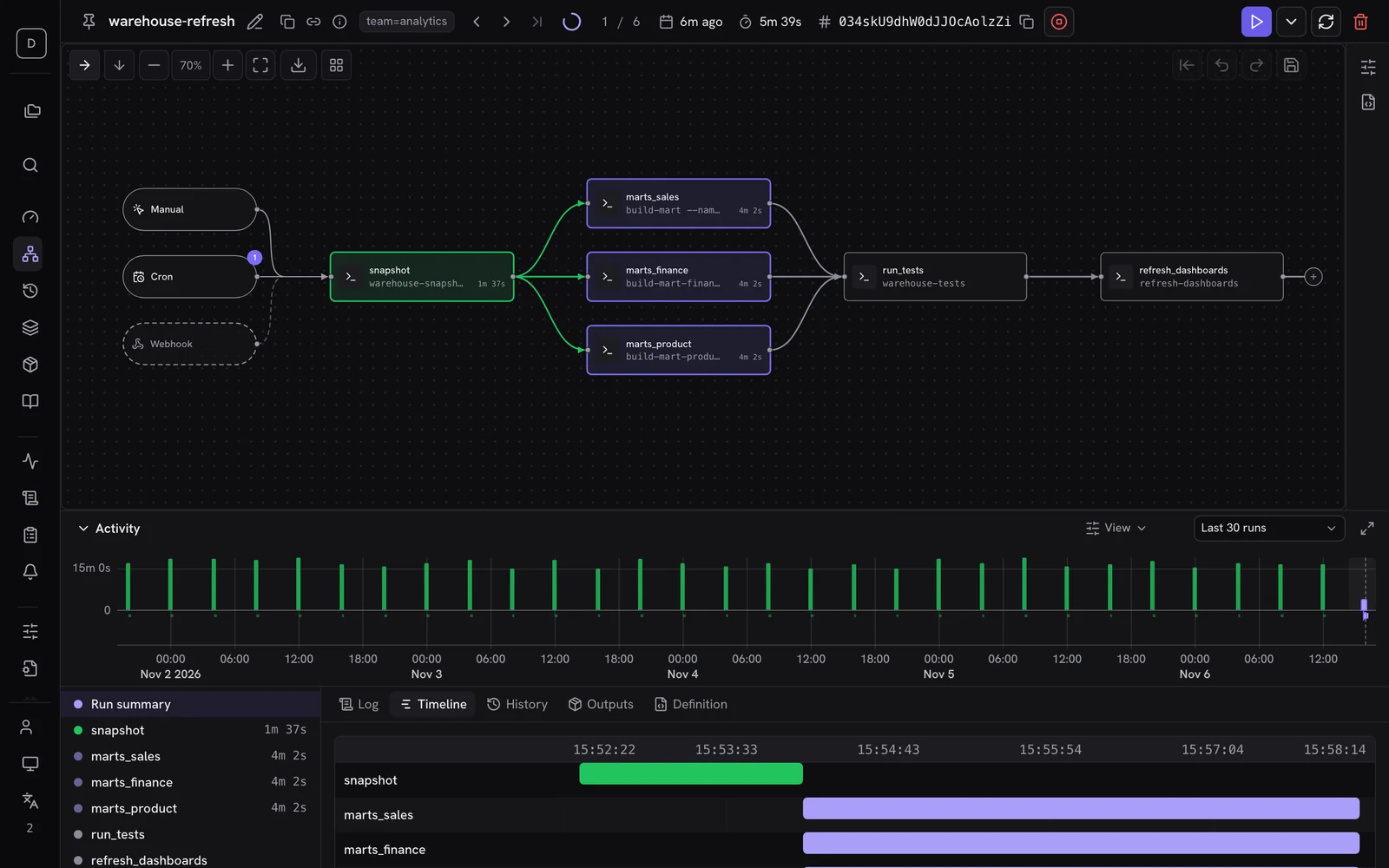
The page shows the latest run until you select another. The URL records the run and the step, so a link you paste in chat opens the same view. Run links in existing notifications still work, and they open on this page.
Edit on the canvas or as YAML
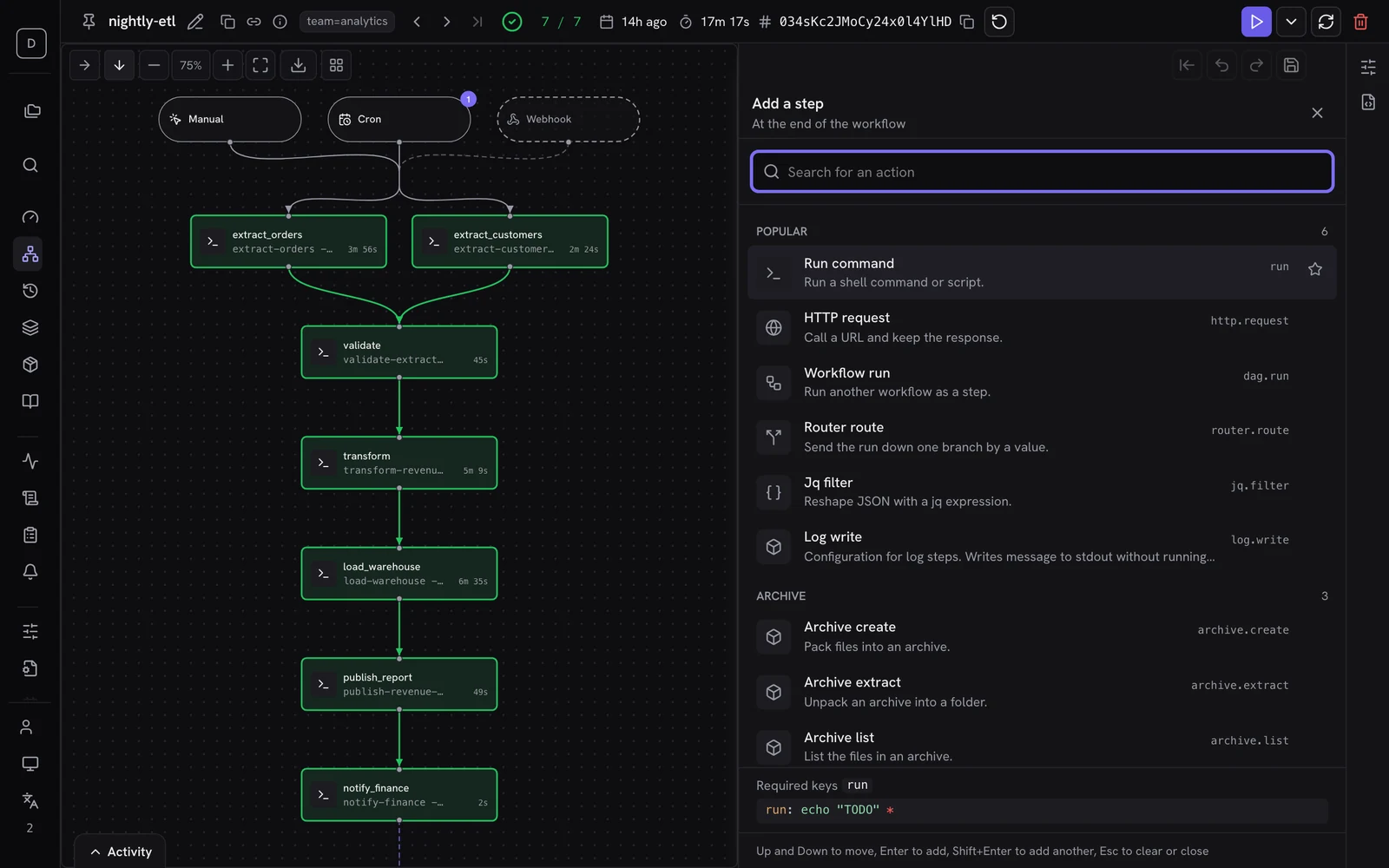
Press N, or select the + after a step, to add a step from the palette. Drag from one step to another to add a dependency.
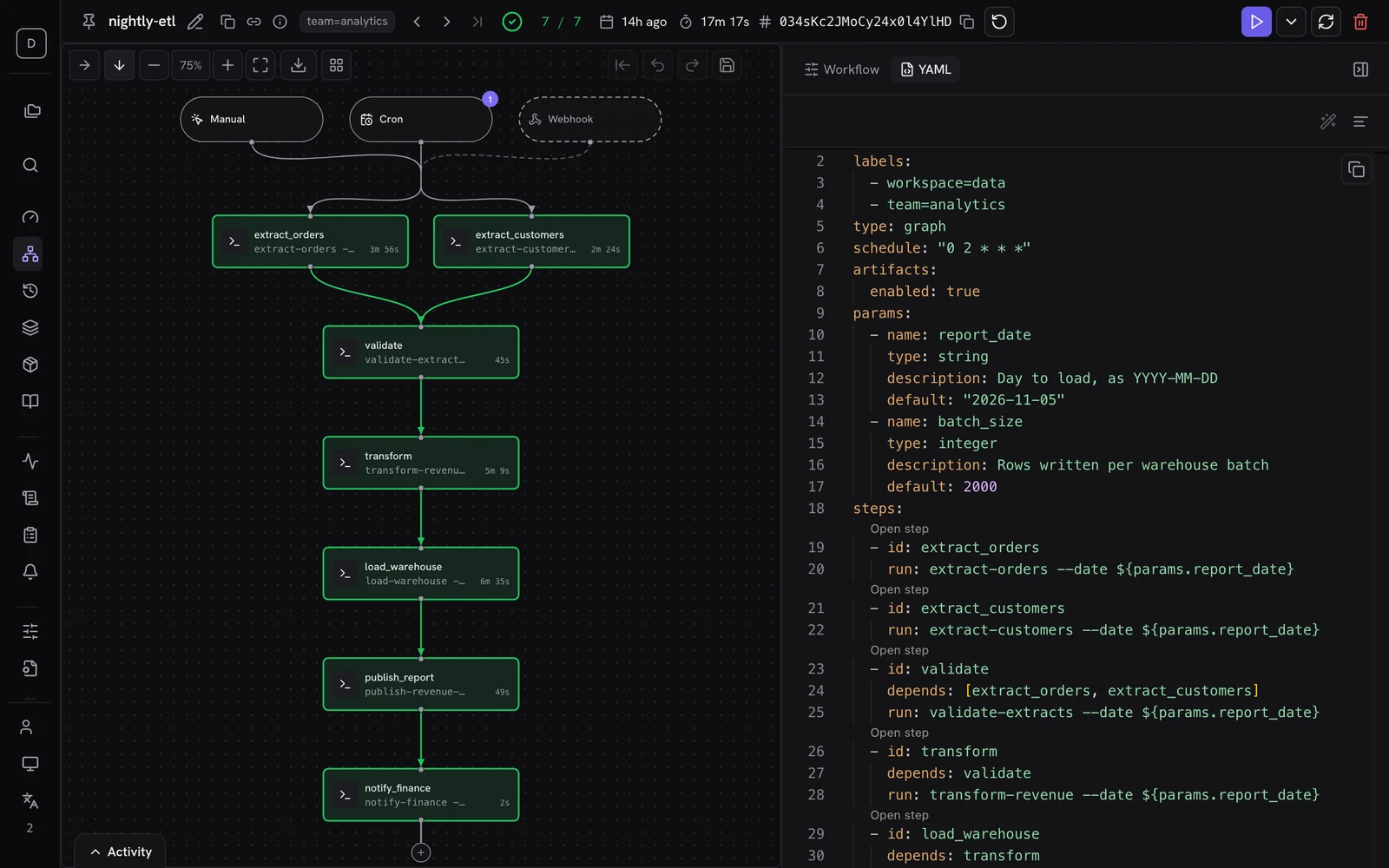
The YAML tab beside the canvas shows the whole file, with validation, schema-aware completion, formatting, and quick fixes. Save shows your changes against the saved version before it writes the file. The workflow is still a YAML file, so you can keep it in git and review it as a diff.
You can also try a step before you save. Run step runs that step now, and it can reuse the outputs of upstream steps from an earlier run. A step run from unsaved edits is a test run: it is not kept, and it disappears 10 minutes after it ends.
When a run fails
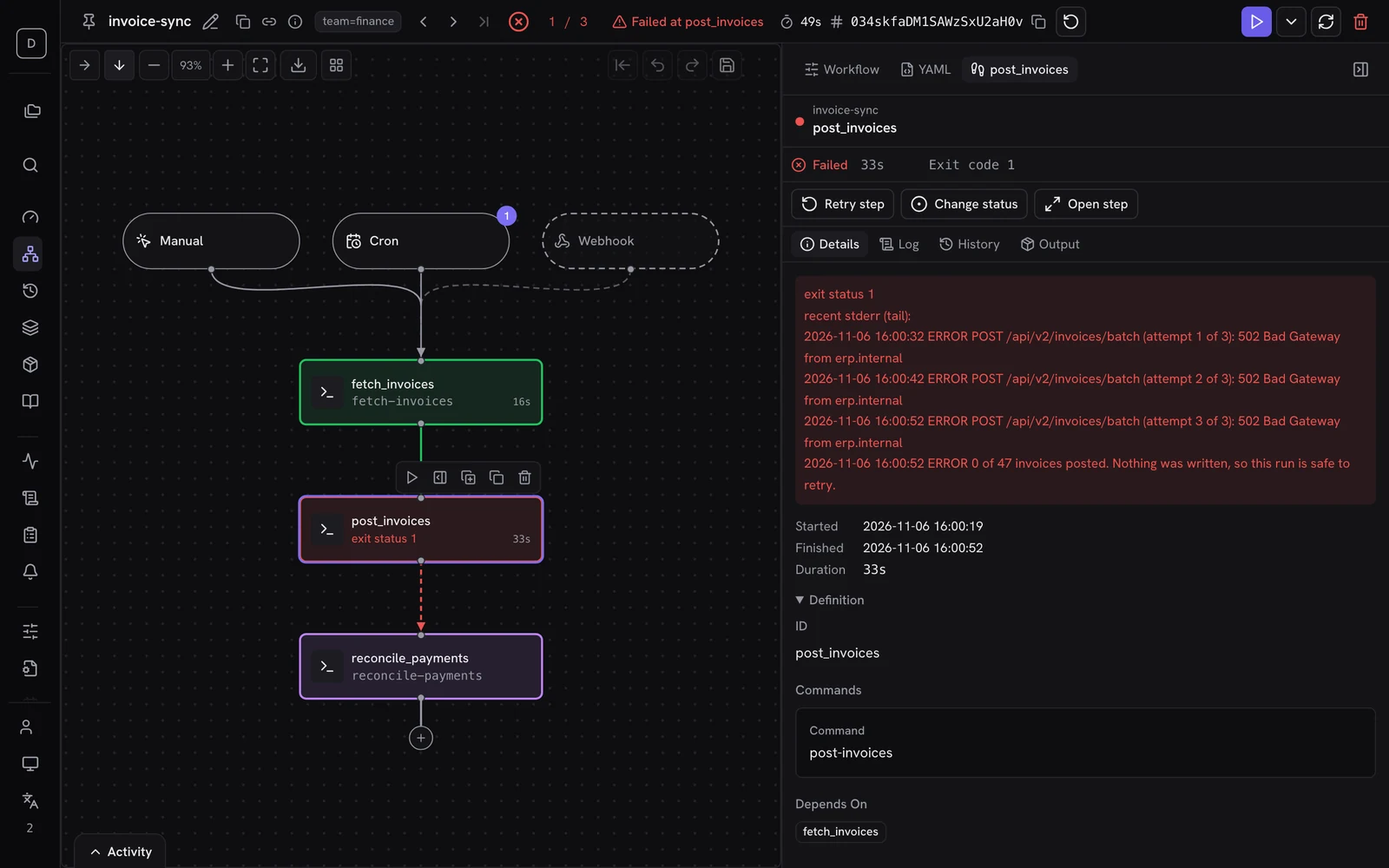
Click a failed step to see its exit code and the end of its stderr, with Retry step right there. The canvas does not move, because the step opens in a tab beside it. The Log tab opens a failed step on its stderr.
The History tab lays out each step's status across recent runs, so you can see whether a failure is new. Select a step's name for its success rate and usual duration.
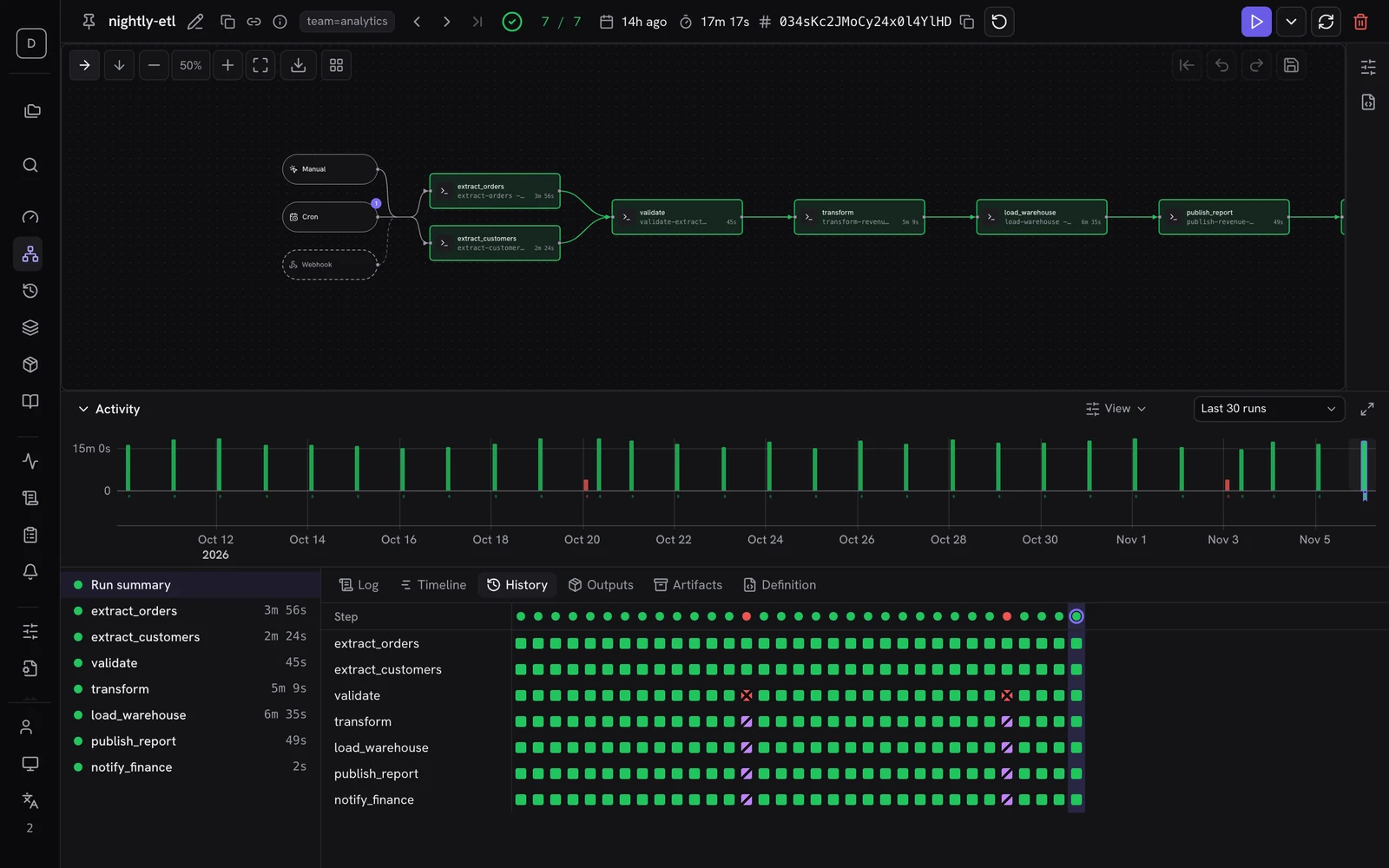
When a run waits for a person, the canvas shows a notice, and the Actions tab holds the approval or the form to fill in.
Around the workflow page
- Overview leads with what needs a person: failing workflows and runs waiting for input. Below that are the runs in progress and the scheduled runs up next. Cockpit is a live board, and New view adds boards of your own.
- Lists open a workflow or a run over the list, at its own URL.
UpandDownstep through the rows, and the browser's Back button returns to the list. - Command palette:
⌘KorCtrl+Kjumps to any workflow or page. - Sidebar: every page is a direct link, under Monitor, Configure, and Administration.
- Theme: the UI follows your system's light or dark setting.
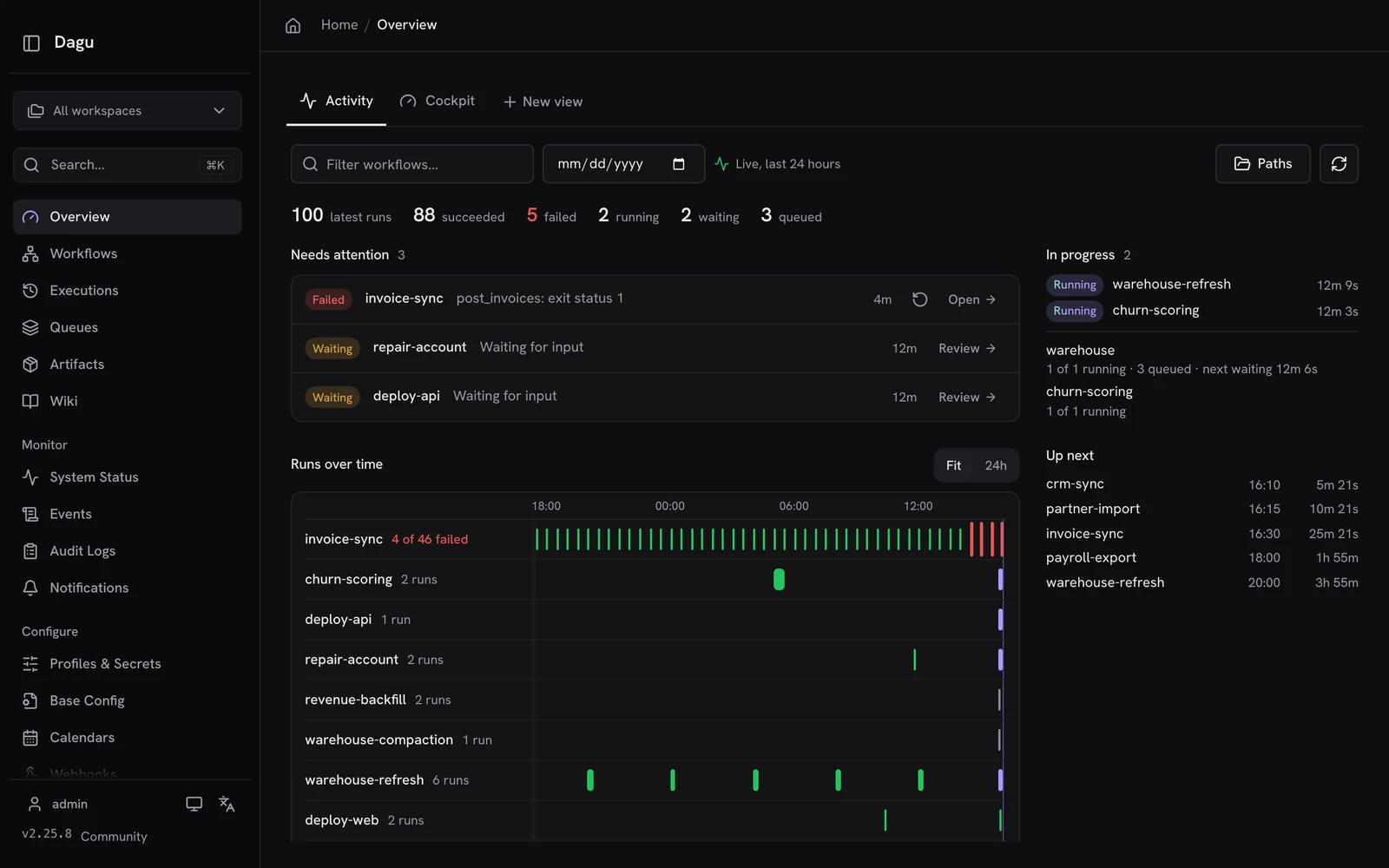
The screenshots come from a demo server, so the workflows and their history are invented.
Try it
Run dagu upgrade, or update the way you installed Dagu, and open a workflow. The Web UI docs cover every screen. If something gets in your way, tell us on Discord.
@SCcagg5 designed and built the UI in v2.25, in a stack of 31 pull requests. It changes how Dagu feels to use every day. Thank you.
Written by
Contributor to the Dagu project.
More from Yota Hamada